
Reproducibility in CellProfiler
Last updated on 2026-03-31 | Edit this page
Overview
Questions
- What is the difference between saving a CellProfiler project and exporting a pipeline?
- Which approach is more portable across computers and collaborators?
Objectives
- Practice sharing both formats with a neighbor and observe what breaks.
- Verify reproducibility by comparing exported measurements.
A CellProfiler analysis is only useful if someone else (or future you) can reproduce it. In practice, “someone else” might be the person sitting next to you today, using a different computer with a different folder structure. But more generally, reproducibility is important at many stages: when you come back to your analysis two years later, when the next student wants to pick up the project, or when you publish your results. Reviewers may well demand access to the pipeline to see which steps were done to analyse images. So how do we share our workflow?
CellProfiler gives you two common ways to save your work:
Save Project captures your whole working session, including the image file list. This is convenient when you want to pause and continue later on the same computer.
Export Pipeline captures your analysis recipe (modules + settings), but not the image file list. Which one is better for sharing your workflow? Let’s find out!
Save your workflow in CellProfiler in both ways:
- File → Save Project
- File → Export → Pipeline
naming them with your name. Note the different file endings,
.cpproj for the former and .cppipe for the
latter.
Then share the file with your neighbor by following the instructions below.
You have a few options to quickly share your files. If you have a USB
stick with you, that may be the fastest option. But otherwise follow the
instructions under Online file share.
If you do not have a USB stick with you, we can use an online file sharing solution. You can use email/OneDrive/Dropbox/Google Drive if you like, or follow the instructions below if you do not want to create an account on a service.
- Both you and your neighbor should open https://toffeeshare.com
- You share one of the two files by clicking on the
+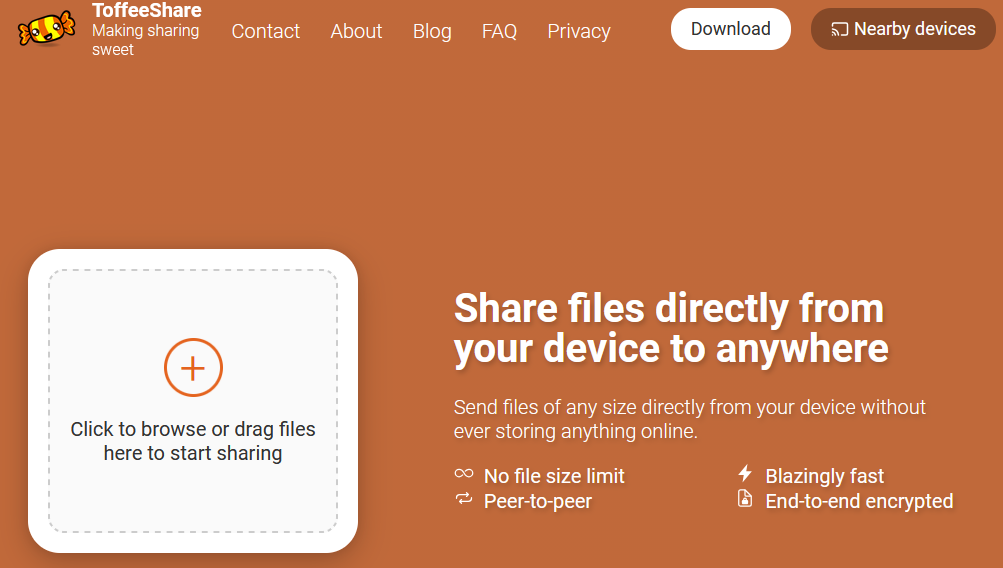 . Note that toffeeshare only allows sharing
one file at a time. You can zip the two files to an archive to only
share one file if you prefer, in which case skip step 7.
. Note that toffeeshare only allows sharing
one file at a time. You can zip the two files to an archive to only
share one file if you prefer, in which case skip step 7. - Make sure to set the
Local sharing codeoption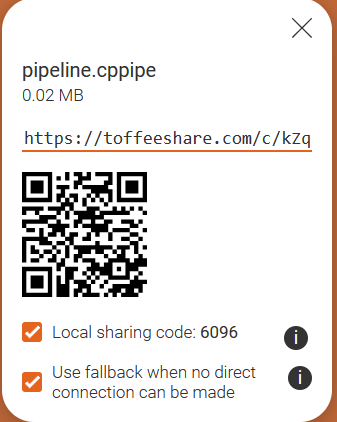
- Your neighbor now clicks on
Nearby devicesin the top right - Then, they enter the share code displayed on your device.
- The download should start within ~10 seconds, make sure you both keep the window open in the meantime.
- Repeat 1-6 with the other file.
- Repeat 1-7 with your neighbor now sharing their files with you.
You should now have shared your workflows with each other, each having two files of the other:
- The pipeline file (
.cppipe) - The project file (
.cpproj)
Try to reproduce your neighbour’s results
Start with loading the project file into CellProfiler with File → Load Project. You may get a warning about version mismatches, this can usually be ignored but using the latest available version is advised.
Try going through the workflow. Does everything work as you would expect?
You can verify that you are getting the same results by looking at
the output of MeasureObjectIntensity in test mode and
comparing with each other.
The workflow should be reproducible, but you may encounter an issue:
the images loaded in with the Images module are not in the
same location on your computer. You will have to select and delete them
(right click > Remove From File List). Then, add the
images into CellProfiler again. Now run through the workflow.
As you may have noticed, most of the workflow was reproducible, but we had to switch out the images first. The other way of sharing a workflow avoids this.
In a new CellProfiler window (File > New Project), load in the
.cppipe file by using
File > Import > Pipeline From File. Load in the
images and go through the workflow again. You should notice that the
results remain unchanged.
Recall from episode 2 that we extract metadata from the file but not folder names in this exercise. This can differ between projects - for example, you may have a different folder for each day of imaging. In this case, you will need to reproduce the folder structure on the new PC before you will be able to run the pipeline.
Practical takeaways
When you want to continue your own work, saving the project is convenient.
When you want to share a reproducible analysis workflow, exporting the pipeline is usually the better default. If you share a pipeline, it is a good idea to also share some example images for testing. And of course for full reproducibility, you need to share all images.
- Save Project is great for restoring a full session, but often stores image paths that are not portable.
- Export/Import Pipeline is a more reproducible way to share an analysis workflow.