Usage guide
This page walks through the Colocalization Analysis dock widget and its three tabs.
Documentation index: Home · Usage · Metrics · Python API
Opening the widget
In napari: Plugins → Colocalization Analysis. The widget docks on the
right by default. To follow along without your own data, load a sample:
File → Open Sample → napari-colocalization → Colocalization sample (2D).
A 3D synthetic version is also provided, plus CBS006RBM, a two-channel
benchmark image (~50 % colocalization) downloaded once and cached under
~/.cache/napari-colocalization/ from the
Colocalization Benchmark Source.
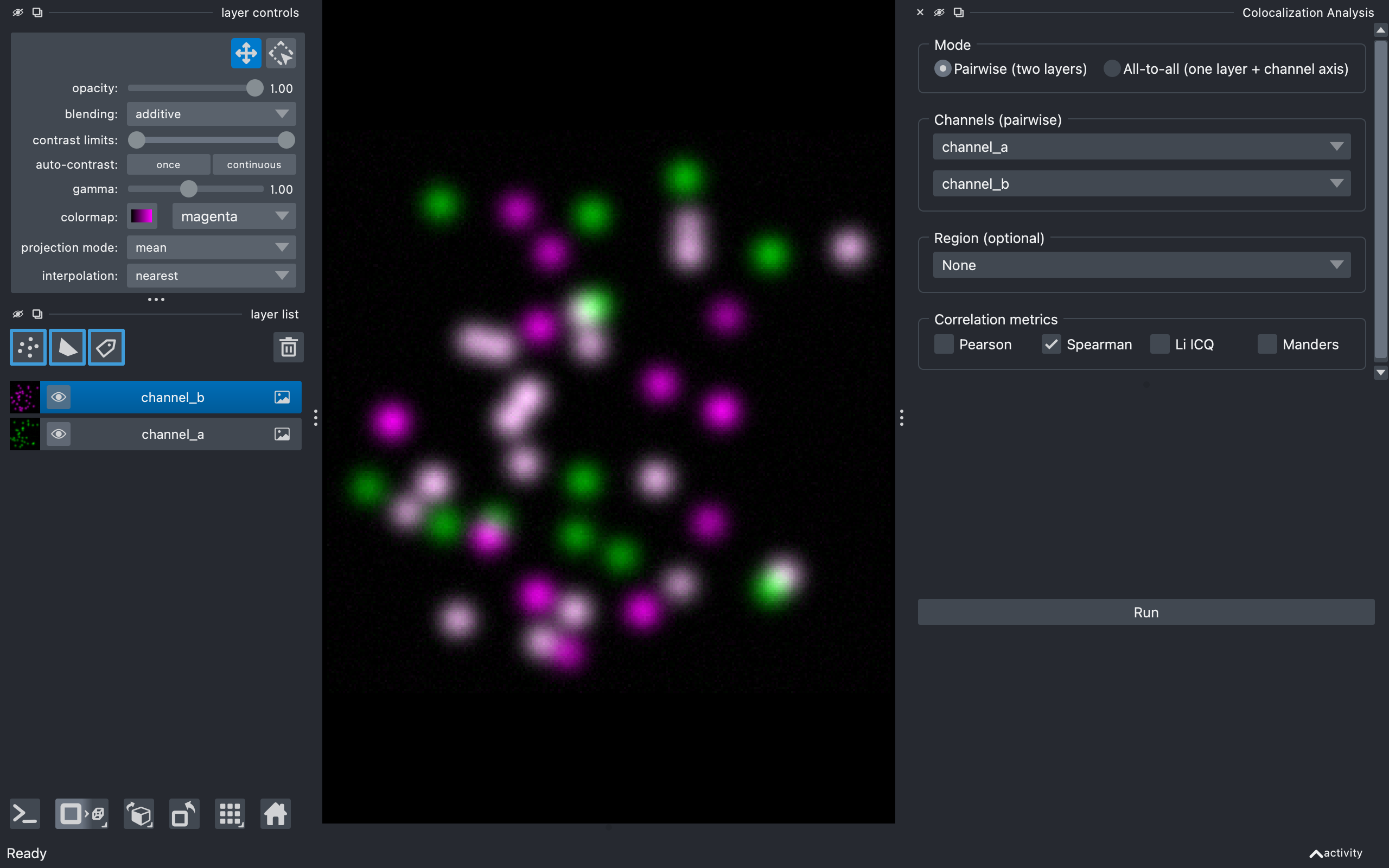
The widget is split into three tabs, each self-contained (its own channel selectors and Run button):
- Pixel-based - the per-region metric table and cytofluorogram.
- Diagnostics - single-pair diagnostic plots.
- Object-based - object-level coincidence and overlap.
Pixel-based tab
Mode
Choose how channels are supplied:
- Pairwise (default) - pick two separate image layers (e.g.
channel_aandchannel_b). - All-to-all - pick a single image layer that has a channel axis (e.g.
shape
(C, Y, X)); the plugin computes every channel pair(i, j)withi < j.
Channels
In pairwise mode, two layer combos labelled Image A and Image B, auto-populated from the viewer's image layers. With at least two images present, A and B default to different layers. Both must have the same shape.
A Per Z-slice checkbox with a Z axis spinbox analyses each plane of a
3D stack separately (one result row per slice, tagged in the slice column)
instead of the whole volume; it requires a 3D image.
In all-to-all mode, a single Image stack combo plus a Channel axis
spinbox (bounded by the layer's .ndim; the plugin guesses a sensible
default). Channel names are derived from the layer name plus the index along
the channel axis (e.g. stack_0, stack_1).
Region (optional)
A dropdown listing every Shapes and Labels layer, with None at the top:
- None (default) - analyse the whole image (one row per channel pair,
region = 0). - A Shapes layer - each shape is its own region; region IDs match the 0-based shape indices napari shows on hover.
- A Labels layer - each non-zero label is its own region, preserving the label values.
The dropdown updates as you add, remove or rename Shapes/Labels layers; image layers are excluded. The region's spatial shape must match the channels'.
Colocalization metrics
Five checkboxes: Pearson, Spearman, Li ICQ, Overlap (r, k1, k2) and Manders. The first three measure intensity correlation; Overlap and Manders measure co-occurrence (see metrics.md). Only Spearman is on by default (the most outlier-robust). Pick any subset; unrequested metrics are blank in the table. See metrics.md for what each one means.
Manders threshold
Visible only when Manders is checked - a Method dropdown:
- Costes (auto) (default) - the iterative Costes threshold (orthogonal regression + bisection, matched to Fiji Coloc 2).
- Otsu / Li / Triangle / Yen / Mean / IsoData - a per-channel
histogram threshold (
skimage.filters), giving the thresholded tM1/tM2. - Manual - reveals T_a / T_b spinboxes for explicit values. Each box is seeded from its channel's own intensity range: the bounds match the layer, the step is a hundredth of that range, and the tooltip spells the range out — so a 16-bit channel steps in hundreds rather than in 0.01, and a normalised 0–1 channel keeps full precision. Changing the selected layer re-seeds the box, since a threshold from a channel with a different range no longer means anything.
In all-to-all mode the chosen method applies to every channel pair.
Run and results
Run computes the metrics on a background thread (the UI stays responsive; the button disables while running). The Results group then appears.
The table has one row per (channel pair, region[, slice]): region,
slice, channel_a, channel_b, n_pixels, the metric columns (pcc +
pcc_pvalue, srcc + srcc_pvalue, icq, overlap/k1/k2, tm1/tm2)
and threshold_a/threshold_b. Click a header to sort; multi-select with
Ctrl/Shift-click. If a region's metric can't be computed (too few pixels,
a constant or empty channel) its cell is left blank and a note below the table
summarises how many rows were affected and why.
The cytofluorogram below is a 2D hexbin density plot of the two
channels' intensities for the selected row, with the axes labelled by the
channel names. Red lines mark the Manders thresholds and a cyan dashed line
shows the Costes regression when those were computed; metric values are
annotated in the corner. Fixed plot axes locks the axes to
[0, channel max] so plots are comparable across regions, slices and images.
Selecting rows highlights the matching regions in the viewer (a Shapes
outline, or show_selected_label for a single Labels row).
Three actions sit below: Export CSV… (the table), Export figure… (the cytofluorogram, at a chosen size/DPI and format), and Add coloc mask layer (a Labels layer of the pixels above both Manders thresholds for the selected row). See Exported CSVs for what the file records beyond the table itself.
Diagnostics tab
For a single channel pair (its own Image A/Image B and optional Region), the Diagnostic dropdown picks one plot:
- Costes randomization - the significance test: channel B is block- scrambled many times to build a null PCC distribution, plotted as a histogram with the observed PCC, a p-value and a z-score. Parameters: Iterations and Block size. 2D or 3D.
- Van Steensel CCF - Pearson's r as channel B is shifted across Max shift pixels; a peak at 0 indicates colocalization.
- Li ICA - the intensity-correlation-analysis scatter (intensity vs covariance product) for each channel, with the ICQ value.
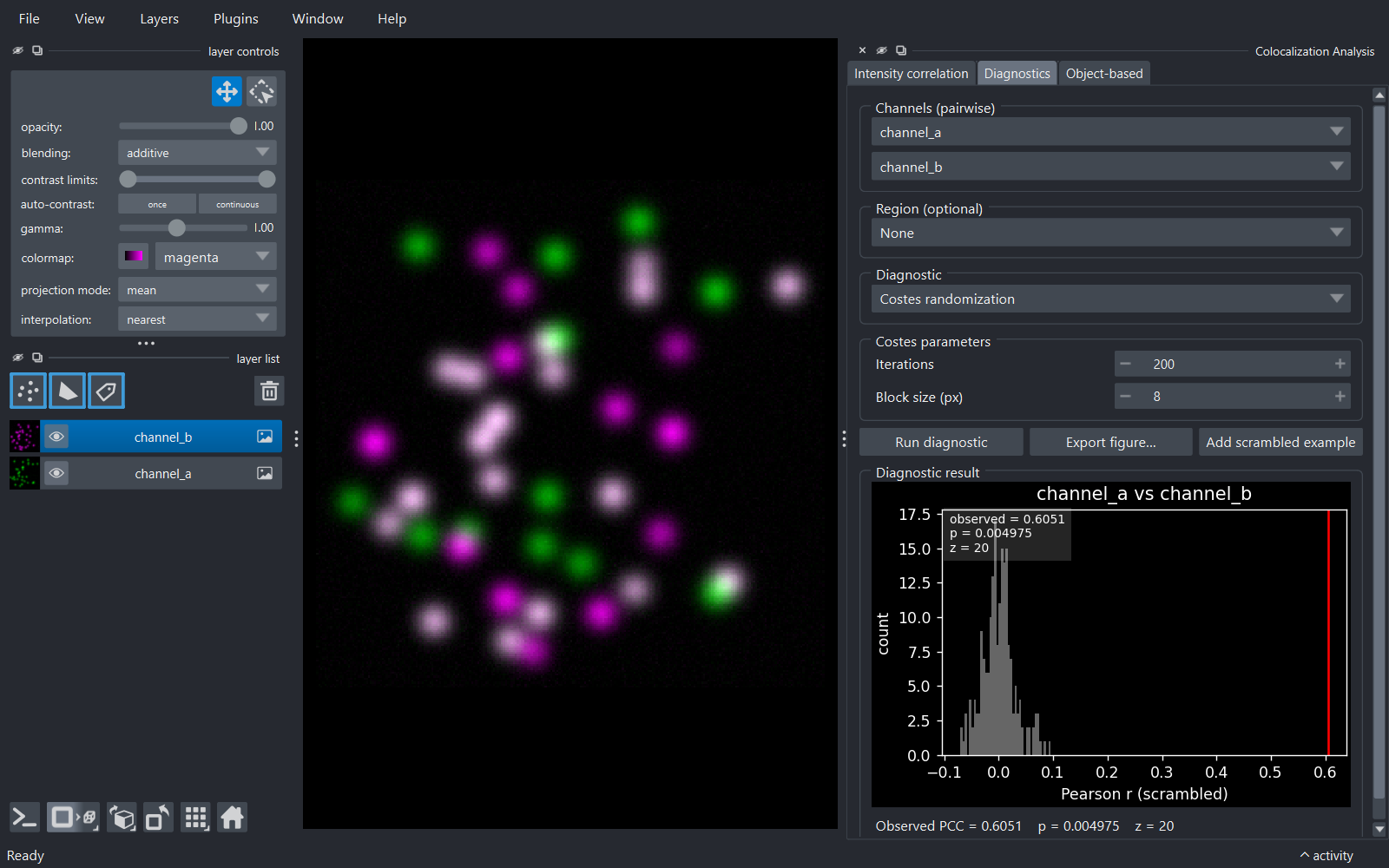
Run diagnostic renders the plot and a one-line summary. Costes randomization and the CCF report progress on a bar while they run, and Cancel stops them at the next iteration — worth knowing before setting Iterations high, since the null is built one scramble at a time and 100 000 of them takes minutes. A cancelled run leaves the previous result cleared and the controls ready for another go.
Export figure… saves the picture; Export values… saves the numbers behind it
as CSV — the null distribution (iteration, null_pcc) for Costes, the
curve (shift_px, pearson_r) for the CCF, or the per-pixel points (a,
b, product) for Li ICA. The run's scalars (observed PCC, p, z, or ICQ)
ride along as extra columns. Both buttons stay disabled until a diagnostic
has been run. For Costes randomization, Add scrambled example adds one
block-scrambled copy of Image B to the viewer as an Image layer.
Note that the Li ICA export is one row per pixel, so it can be a large file for a big stack; the confirmation message reports the row count.
Object-based tab
Compares segmented objects between two channels. Objects from chooses the source:
- Threshold images (default) - pick Image A/Image B, a Threshold method (Otsu/Li/…) and a Min object size; the plugin thresholds and connected-component-labels each channel. An optional Region restricts detection.
- Labels layers - pick two existing Labels layers (e.g. from cellpose/StarDist or manual painting).
Overlays toggles Show centroids (Points) and Show nearest-neighbour links (Vectors).
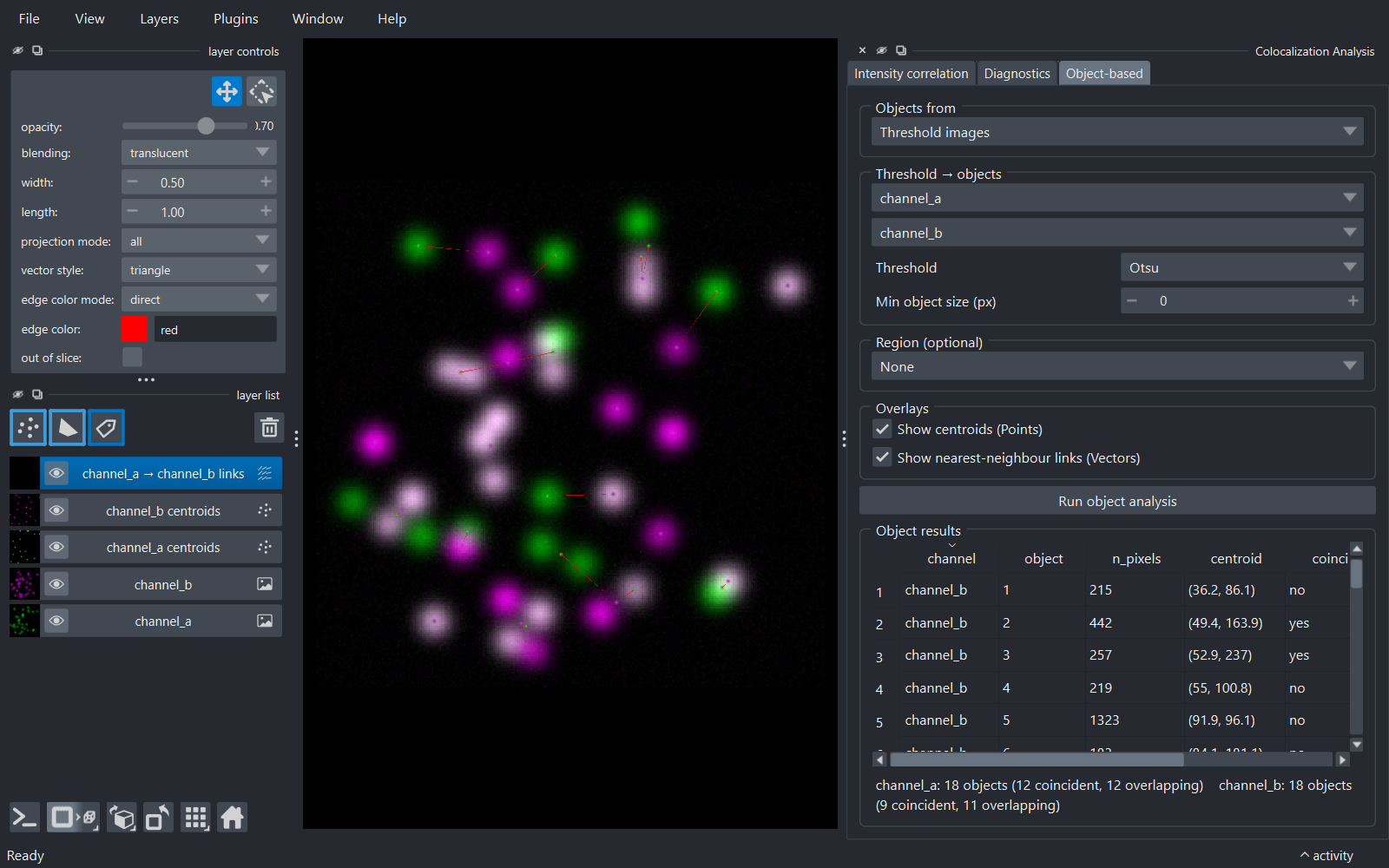
Run object analysis fills the Object results table - one row per
object (channel, object, n_pixels, centroid, coincident,
overlap, nn_distance_px). Coincident means the object's centroid
falls inside an object of the other channel; overlap means its pixels
touch one.
nn_distance_px is the distance from the object's centroid to the nearest
centroid in the other channel. It is the graded companion to the two
yes/no measures: an object
that misses by 2 px and one that misses by 200 px both read as "no", but
they are not the same result. The distance is in pixels, matching
n_pixels and the centroid columns beside it — the plugin does not apply a
layer's physical scale anywhere, so convert yourself if you need microns.
It is blank when the other channel has no objects to measure to. If overlays are enabled, object centroids are
added as Points layers (coloured by each channel's colormap) and the
nearest-neighbour links as a Vectors layer; re-running replaces them.
Export CSV… (next to the Run button, disabled until there are results)
saves the per-object table. The centroid tuple is split into one column per
axis — centroid_0, centroid_1 and, for a 3D image, centroid_2 — so the
coordinates are usable downstream without string-parsing.
Exported CSVs
All three tabs write plain CSV that opens unchanged in Excel or
pandas.read_csv (no comment= flag needed). Alongside the data columns,
each file repeats a few provenance columns on every row, recording how the
run was configured:
| Column | Meaning |
|---|---|
plugin_version |
the plugin version that computed the numbers |
analysed_at |
local timestamp of the run |
region_layer |
the Shapes/Labels layer used, or blank for whole-image |
mode, metrics, threshold_method, slice_axis |
Pixel-based run settings |
objects_from, threshold_method, min_object_size |
Object-based run settings |
diagnostic, channel_a/channel_b, n_iter, block_size, max_shift |
Diagnostics run settings |
Fields that don't apply are left blank rather than filled with a default — a
threshold_method of costes is only recorded if Manders was actually
requested, so an empty cell means "no threshold was applied", not "unknown".
The point is that a saved file says how it was produced: the metric columns
alone can't tell a reader whether threshold_a came from Costes, Otsu, or a
number typed by hand.